Step 1
Find an item
Search by product name, brand or type. You can also browse a category, then use the price filter and sorting options to narrow the results.
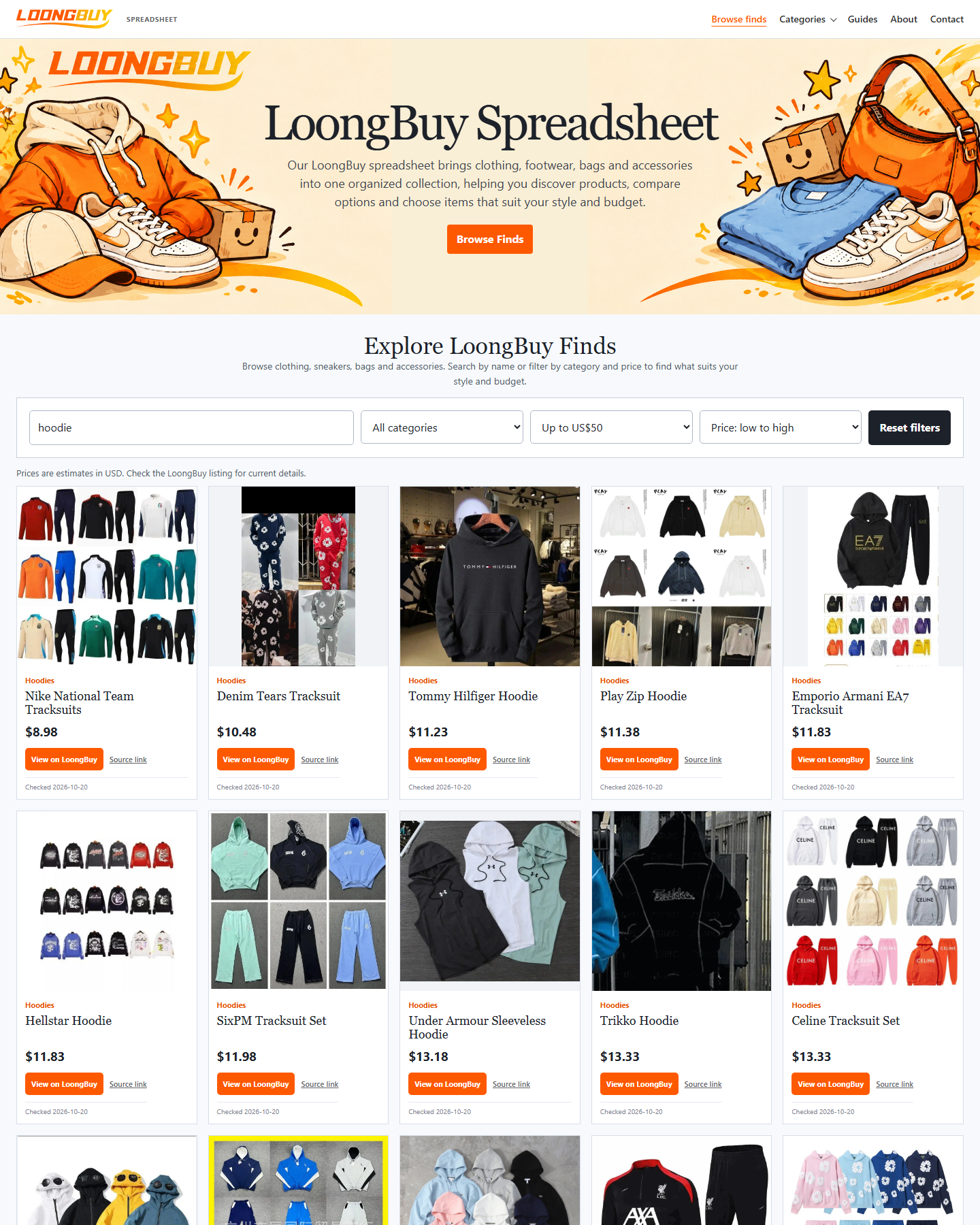
Looking for a hoodie? Enter “hoodie” in the search bar, choose a price range, then use the sorting options to browse the results.
Step 2
Review the product details
Use the image, title, category and USD reference price to compare products before opening a listing. A multi-item image does not mean every item shown is included for the displayed price. Open the listing to confirm the available version and its price.
Step 3
View the item on LoongBuy
On the product card, select View on LoongBuy. On the linked page, check the selected style, colour, size, quantity and current price. Make sure the images match the option you choose.
If the LoongBuy page does not open, return to the card and use its Source link, or use the existing Contact page to report the link.
Step 4
Save the link and your selected options
Save the product link in your browser bookmarks or your own notes. Record the colour, size or style you want so you can compare those details with the order before paying.